
Color grading prompts are now trending on TikTok and Instagram, and many people are searching for the best AI color grading prompts to create viral photos and videos. In this article, I will share five powerful color grading prompts that you can use to edit your photos with just one click.
If you don’t know how to do color grading manually, don’t worry. You can easily use AI prompts to achieve professional results. Simply upload your photo, enter the prompt, and your color-graded image will be ready in seconds. Below, you’ll find the best prompts and step-by-step instructions to use them effectively.
How to Do Color Grading Using Gemini AI
If you want to create cinematic or viral-style videos for TikTok or Instagram, you can use Google Gemini AI to generate professional color grading settings and LUT-style prompts.
Gemini cannot directly edit your video, but it can generate:
- Exact color grading values
- LUT-style descriptions
- Step-by-step editing instructions
You can then apply these settings in apps like CapCut, VN, or Adobe Lightroom.
1. Generate Professional Color Grading Settings with Gemini
Step-by-Step Guide
1: Open Gemini (web or app).
2: Upload a screenshot from your video or your photo.
3: Use this prompt:
Analyze this image and give me professional cinematic color grading settings. Provide values for Exposure, Contrast, Highlights, Shadows, Temperature, Tint, Saturation, Vibrance, Fade, Sharpen, and RGB curves. Give settings suitable for TikTok viral style.
Gemini will generate custom settings based on your image lighting and colors.
2. Example: Dark Moody Cinematic Color Grade
You can ask Gemini:
Give me dark moody cinematic color grading settings with teal shadows and warm skin tones.
Example Output:
- Exposure: -10
- Contrast: +25
- Highlights: -40
- Shadows: -20
- Temperature: -5
- Tint: +8
- Saturation: -5
- Vibrance: +20
- Fade: +10
- Sharpen: +30
Simply copy these values and apply them inside your editing app.
Color Grading Prompts
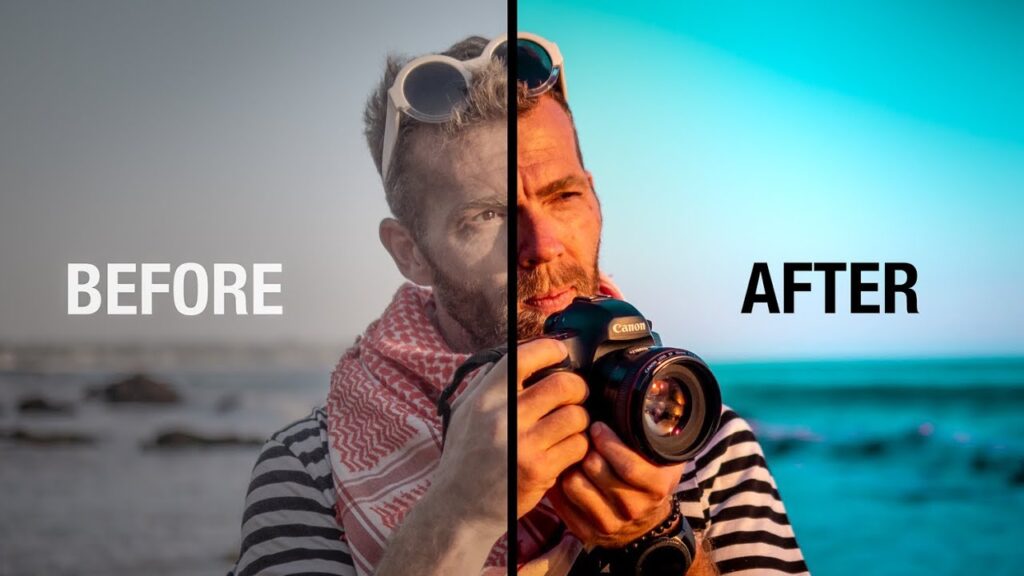
Warm Hollywood Golden Tone
Apply professional cinematic color grading with warm golden undertones inspired by Hollywood films. Maintain natural skin tones with smooth, soft skin texture (no plastic effect), preserve original facial expression and emotions. Slight background depth blur for separation. Balanced highlights, lifted shadows without crushing blacks, no heavy contrast, no extra grain. Soft glow on highlights, creamy color transitions, rich yet subtle warmth. Works for portrait and landscape photography. Ultra-detailed 8K clarity, realistic depth and emotional atmosphere.
Soft Fade Moody Cinematic (Netflix Style)
Apply soft faded cinematic color grading with muted tones and gentle contrast. Keep emotions and facial features untouched. Smooth skin subtly while preserving pores and realism. Slight depth-of-field blur in background for professional separation. No dark crushed shadows, no over-contrast, no artificial grain. Balanced exposure with soft blacks and creamy highlights. Moody yet elegant look suitable for both portraits and landscapes. Ultra-clean professional finish.
Sunset Orange & Teal (Balanced Version)
Add a refined orange and teal cinematic grade with soft highlight roll-off and controlled shadows. Skin tones must remain natural and smooth without over-editing. Preserve original expression and mood. Add subtle depth blur only if needed. No harsh contrast, no dark patches, no grain. Smooth color blending with Hollywood-style tonal separation. Professional, high-end film look.
Dark Luxury Cinematic (Soft Black Tone)
Apply a luxury dark cinematic color grade with soft matte blacks (not crushed), controlled highlights, and smooth skin detail. Keep facial emotions unchanged. Enhance depth subtly with background separation blur. No heavy contrast or grain. Rich, deep colors but balanced exposure. Premium movie-style grading suitable for portraits and landscapes.
Cool Blue Cinematic Atmosphere
Apply cool cinematic blue tones with soft light diffusion and clean skin smoothing. Preserve natural face texture and original emotions. No dark shadows, no over-contrast, no grain. Balanced exposure with soft highlight glow and smooth tonal transitions. Slight background depth blur if needed. Ultra-professional Hollywood atmosphere.
Natural Film Look (ARRI Style)
Create a natural cinematic film grade inspired by ARRI color science. Maintain realistic skin tones and facial emotions. Soft contrast, lifted shadows, gentle highlight roll-off. No artificial grain, no heavy dark areas. Clean and realistic depth with slight background blur if required. Organic, film-like, emotional and professional.
Dreamy Soft Glow Cinematic
Apply dreamy cinematic color grading with soft glow around highlights and smooth tonal transitions. Keep emotions and facial details intact. Skin should look smooth but realistic, not plastic. No harsh shadows, no grain, no high contrast. Slight depth blur for professional separation. Clean Hollywood-style finish.
Urban Clean Cinematic
Add modern urban cinematic color grading with balanced tones and soft contrast. Preserve original expression and face details. Natural skin smoothing, no over-editing. Controlled highlights, lifted shadows without darkness. No grain, no dramatic contrast. Professional depth separation blur only if needed. Sharp yet smooth cinematic result.
Earthy Natural Cinematic
Apply earthy cinematic tones with subtle greens and warm highlights. Maintain natural skin color and emotions. Soft faded blacks, no crushed shadows, no heavy contrast. Smooth skin texture with realistic detail. Slight background blur for depth. Clean, organic, film-like aesthetic.
High-End Commercial Cinematic
Create a high-end commercial cinematic grade with clean exposure, soft highlight bloom, balanced shadows, and ultra-smooth skin (retain natural texture). Preserve facial emotion completely. No grain, no dark patches, no heavy contrast. Slight depth blur for professional look. Ultra-detailed, premium Hollywood finish for portrait and landscape photography.
Dark Cinematic Teal & Orange (Moody Film Look)
Professionally color grade this photo with a dramatic cinematic teal and orange tone. Enhance skin texture naturally with visible pores (no plastic smoothing). Add deep contrast, controlled highlights, rich shadows, and subtle film grain. Increase dynamic range while preserving details in blacks and highlights. Add soft rim light effect and slight vignette for depth. Make it look like a high-budget movie still shot on ARRI Alexa, ultra-realistic, 8K clarity.
High-End Fashion Editorial Look (Luxury Magazine Style)
Enhance and color grade this image into a high-end fashion editorial look. Clean skin retouching but keep natural texture. Bright but controlled highlights, soft shadows, neutral skin tones, sharp subject separation. Add subtle glow to highlights and refined color balance. Increase micro-contrast and sharpness for ultra-detailed 8K finish. Make it look like a Vogue magazine cover shoot, professional studio lighting, crisp and premium.
Y2K Digital Flash Look (2000s Aesthetic)
Color grade this image in a Y2K early-2000s digital camera aesthetic. Add direct flash effect with sharp shadows, high clarity, cool-toned highlights, slightly crushed blacks. Boost contrast and add subtle chromatic aberration and fine digital grain. Skin should look glossy but realistic. Vibrant yet slightly nostalgic color tone. Make it look like a 2003 paparazzi fashion shot, ultra detailed, high resolution.
Soft Golden Hour Cinematic Glow
Transform this photo into a warm golden hour cinematic look. Add soft warm highlights, gentle sun glow, natural skin tones, smooth shadow falloff, and atmospheric depth. Increase dynamic range and enhance details without oversharpening. Add subtle lens flare and warm rim light effect. Make it look emotional, dreamy, and dramatic like a romantic movie scene shot in 8K RAW.
Dark Luxury Instagram Reel Tone (Moody Influencer Style)
Enhance this photo with a dark luxury Instagram aesthetic. Deep blacks, muted background tones, warm skin highlights, sharp subject clarity. Add subtle film grain and slight matte finish. Increase contrast while protecting skin tones. Add soft spotlight effect on subject and cinematic color depth. Ultra realistic, detailed texture, dramatic mood lighting, high-end influencer vibe.
3. Create LUT-Style Prompts for CapCut AI
If you are using CapCut, you can ask Gemini:
Create a cinematic LUT prompt for CapCut AI color grading. Style: warm sunset, soft glow, viral TikTok aesthetic.
Gemini may generate a prompt like:
Warm golden tones, soft skin highlights, slightly faded blacks, enhanced orange and teal contrast, smooth cinematic look, soft vignette, gentle glow.
Paste this into the CapCut AI color grading tool to get a professional cinematic result.
4. Trending TikTok Colour Grading Prompts
Here are some trending styles you can generate:
- Dark Blue Night Cinematic
- Soft Korean Drama Look
- Golden Hour Glow
- Viral High-Contrast Reel Look
- Matte Instagram Aesthetic
Example Prompt:
Create a Korean drama soft pastel color grading preset with bright skin, soft pink tint, low contrast, and smooth highlights.
These styles are currently popular on TikTok and Instagram Reels.
5. Pro Tips for Better AI Color Grading Results
- Always upload a clear and high-quality frame
- Mention lighting conditions (day/night, indoor/outdoor)
- Specify skin tone type
- Tell Gemini your target platform (TikTok, Reels, YouTube Shorts)
- Ask for RGB curve explanations if you want more control
Conclusion
AI color grading prompts are trending on TikTok and Instagram. Many creators are searching for the best AI prompts to create cinematic and viral content. In this article, I shared easy and effective color grading prompts that you can use with Gemini AI to edit your photos and videos professionally.
By using these prompts in apps like CapCut, VN, or Lightroom, you can achieve stunning results with just one click.