
Blackmagic Camera is currently trending on TikTok and Instagram. Many creators are searching for the Blackmagic Camera app and its LUTs to create cinematic videos. In this article, you will learn about the Blackmagic Camera, its professional features, and trending Blackmagic LUTs that help you capture high-quality cinematic shots easily.
You don’t need advanced cinematography skills. Simply add LUTs to the Blackmagic Camera app and start shooting professional-looking videos. The app offers powerful pro-level features that make cinematography simple for beginners and professionals alike.
Blackmagic Camera Features
Professional-Grade Image Quality
- High-resolution sensors
Blackmagic cameras support up to 6K resolution (Pocket Cinema Camera 6K) and 4K on other models, delivering sharp and cinematic footage. - Wide dynamic range (around 13 stops)
Captures more detail in highlights and shadows for a natural, film-like look. - Dual Native ISO
Reduces noise and produces cleaner footage, especially in low-light conditions.
Flexible Resolutions and Frame Rates
Blackmagic Pocket Cinema Cameras support multiple resolutions and high frame rates:
- 6K (6144×3456) – up to 50 fps
- 4K DCI / UHD – up to 60 fps
- 2.8K / 2.6K – up to 120 fps
- Full HD (1080p) – up to 120 fps
This flexibility allows you to shoot cinematic videos and smooth slow-motion clips.
Advanced Recording Formats
- Blackmagic RAW (BRAW)
Delivers high-quality footage with smaller file sizes and full control during editing. - Apple ProRes support
An industry-standard format for fast editing and smooth workflow. - Metadata recording
Camera settings, lens data, and LUTs are saved with the footage for easy post-production.
Controls and Monitoring
- Large touchscreen display
A 5-inch LCD touchscreen for easy framing, focus, and settings control. - Dedicated physical buttons
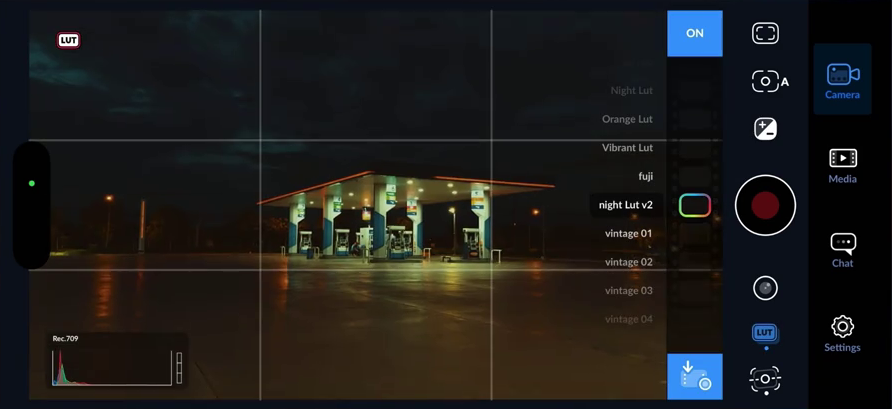
Quick access to ISO, shutter speed, white balance, and recording. - 3D LUT support
Preview custom color looks while recording.
Connectivity and Storage
- Multiple storage options
Supports SD cards, CFast cards, and external SSD recording via USB-C. - Professional audio inputs
Mini-XLR or XLR inputs with phantom power (model-dependent). - Full-size HDMI output
Connect external monitors or recorders easily.
Build and Workflow Tools
- Compact and durable design
Ideal for handheld shooting, gimbals, and professional rigs. - DaVinci Resolve Studio included
Comes with professional video editing, color grading, VFX, and audio tools. - Remote control support
Some models support Bluetooth or app-based remote control.
Popular Blackmagic Camera Models
Android App
iPhone App
Luts
Blackmagic Pocket Cinema Camera 6K / 6K Pro
- Super 35 sensor
- Dual Native ISO
- EF lens mount
- Built-in ND filters (6K Pro)
- High-frame-rate recording
Blackmagic Pocket Cinema Camera 4K
- Micro Four Thirds sensor
- Dual Native ISO
- MFT lens mount
- Up to 60 fps in 4K and 120 fps in Full HD
Why Filmmakers Choose Blackmagic Cameras
- Cinematic image quality
- Excellent color science
- Professional recording formats
- Great value for money
- Industry-standard post-production workflow
How to Add LUTs in Blackmagic Camera
Blackmagic cameras allow you to load 3D LUT (.cube files) for monitoring and recording.
Method 1: Add LUTs Using the Camera Menu
- Prepare the LUT
- Ensure the LUT file is in .cube format.
- Copy it to an SD card, CFast card, or USB-C SSD.
- Insert Storage
- Insert the card or connect the SSD to the camera.
- Open LUT Menu
- Turn on the camera.
- Go to Menu → Monitor → LUTs.
- Import the LUT
- Tap Import LUT.
- Select the LUT file from storage.
- Apply the LUT
- Choose the LUT from the list.
- Enable Display LUT to preview it.
Method 2: Add LUTs Using DaVinci Resolve
- Connect the camera to your computer using USB-C.
- Open DaVinci Resolve.
- Go to Preferences → Camera → LUTs.
- Import the .cube LUT file.
- Safely disconnect the camera.
- The LUT will appear in the camera’s LUT list.
Display LUT vs Record LUT
Display LUT
- Used only for preview.
- Footage remains flat (Log/Film).
- Best for professional color grading.
Record LUT
- LUT is baked into the video.
- Use only if you want a final look straight from the camera.
You can find this option under:
Menu → Record → LUTs
Best Practices for Cinematic Results
- Shoot in Blackmagic Film (Log).
- Use LUTs only for preview.
- Apply final color grading in DaVinci Resolve.
Supported LUT Format
- 17-point or 33-point 3D LUT (.cube)
Conclusion
Blackmagic Camera and its LUTs are trending on TikTok and Instagram. Many creators are searching for Blackmagic LUTs to achieve cinematic video quality. In this article, we explained Blackmagic Camera features, popular models, and how to add LUTs for professional results.
Mix2VFX, a website by Hamza VFX, provides trending AI prompts, video and photo editing apps, CapCut templates, and much more for content creators.