
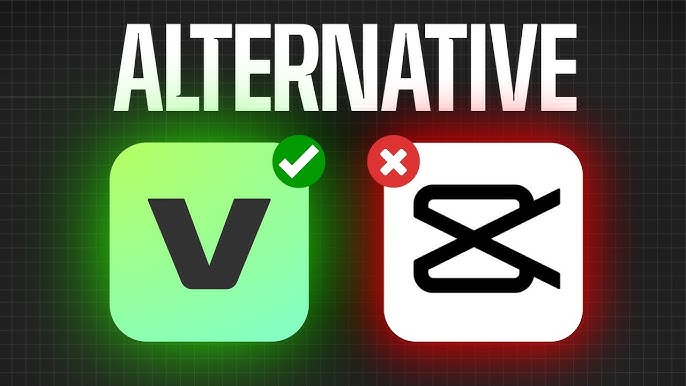
Vita Video Editor: The Underrated App That Might Just Replace CapCut on Your Phone
An honest, hands-on look at why creators are quietly switching—and when you definitely shouldn’t.
June 2025 • 14 min read • Tested on Android & iOS
What’s Inside
- How I ended up on Vita
- What Vita Video Editor actually is
- Features that genuinely impressed me
- Vita vs CapCut — honest side-by-side
- How to get started on Vita
- Who should actually use Vita
- Mistakes I made
- Final verdict
It Started With a Panic Download
A few months ago, I was editing a travel reel with dozens of clips and carefully timed transitions when CapCut suddenly displayed a subscription requirement to export in HD. I had been using the free version and didn’t realize some export features had become restricted.
I didn’t want to pay for a monthly subscription just to finish one video. So I searched for a free CapCut alternative and downloaded several apps.
Two of them were disappointing—slow performance, heavy watermarks, and outdated interfaces. The third app was Vita.
After using Vita for several months across more than 30 videos, I have a lot to say about it.
It’s not perfect, but for many creators, it can be a surprisingly strong alternative to CapCut.
What Is Vita Video Editor?
Vita is a free mobile video editing app developed by Snow Corporation, a South Korean company also known for the SNOW selfie app. It is available on both Android and iOS.
Its biggest attraction is the large template library. Users can select a template, add their clips, and let the app automatically create a synced video. However, Vita offers much more than templates.
Behind the template system is a capable manual editor with useful tools for creators who want more control.
Vita feels like what CapCut used to be before becoming more complex.
At the time of writing, users can export HD videos without paying for a subscription, which is one of the main reasons many creators are switching.
Features That Actually Impressed Me
Excellent Template Library
The template library is organized by mood, aspect ratio, trends, and platform.
Templates are frequently updated to match current social media trends. Simply choose a template, add the required clips, and Vita handles the transitions and synchronization automatically.
Unlike many competing apps, Vita’s templates feel modern and natural rather than generic.
Manual Timeline Editing
Vita includes a proper multi-track timeline editor.
You can add:
- Video layers
- Music
- Voiceovers
- Text
- Stickers
The trimming tools work well even on smaller screens, and the beat synchronization feature is surprisingly accurate.
Filters and Effects
Vita includes a large collection of filters and visual effects.
Many of the filters have a cinematic style inspired by Korean content creation trends. They work especially well for:
- Travel videos
- Lifestyle content
- Food videos
- Aesthetic social media posts
Key Features
Template Library
- Hundreds of ready-made templates
- Frequently updated with trends
Manual Timeline
- Multi-track editing
- Trim, split, and beat synchronization
Filters & Effects
- Cinematic presets
- Exposure and color adjustments
Free HD Export
- 1080p export without a subscription
- Optional watermark removal
Music Library
- Built-in royalty-free tracks
- Organized by mood and style
Cross-Platform Support
- Available on Android and iOS
- Similar experience across both platforms
What’s Missing?
Vita still lacks several advanced features:
- Green screen (chroma key)
- Auto-generated captions
- Text-to-speech
- Desktop version
If these features are important to your workflow, Vita may not fully replace CapCut.
Vita vs CapCut
HD Export
- Vita: Free
- CapCut: Some features behind a paywall
Watermark
- Vita: Removable
- CapCut: Removable
Template Quality
- Vita: Excellent
- CapCut: Excellent
Auto Captions
- Vita: Not available
- CapCut: Available
Green Screen
- Vita: Not available
- CapCut: Available
Text-to-Speech
- Vita: Not available
- CapCut: Available
Filter Quality
- Vita: Cinematic and varied
- CapCut: Trend-focused
Performance
- Vita: Smooth and lightweight
- CapCut: Can be heavier on some devices
Desktop Version
- Vita: Mobile only
- CapCut: Available
Learning Curve
- Vita: Beginner-friendly
- CapCut: Increasingly complex
Overall Conclusion: Vita works exceptionally well for everyday content creators who don’t require advanced AI features. CapCut remains stronger for professional editing workflows.
How to Get Started with Vita
Step 1: Download the App
Install Vita from the Google Play Store or Apple App Store.
You can begin editing without creating an account.
Step 2: Try a Template First
Open the app and choose a template.
Templates will tell you:
- Number of clips needed
- Required clip durations
Simply add your clips and let Vita create the edit.
Step 3: Change the Music
You can replace the default audio with:
- Vita’s royalty-free tracks
- Music from your device
For social media uploads, royalty-free music is usually the safest choice.
Step 4: Make Manual Adjustments
Once the template is generated, use the timeline editor to:
- Trim clips
- Change transitions
- Add text
- Adjust filters
Step 5: Export in 1080p
Choose the export option and select 1080p.
Vita does not require a subscription for standard HD exports.
Step 6: Remove the Watermark
After exporting, you can remove the watermark by watching a short advertisement.
iPhone App
Android App
Who Should Use Vita?
Great For:
- Travel creators
- Food content creators
- Lifestyle influencers
- Short-form video creators
- Users with older phones
- People who want a simpler editing experience
Not Ideal For:
- Creators who rely on auto captions
- Talking-head content creators
- Green-screen editors
- Desktop editors
- Users heavily invested in CapCut’s ecosystem
Mistakes I Made
I Didn’t Check Clip Length Requirements
Some templates require clips of very specific lengths.
Always review template requirements before shooting your footage.
I Used Copyrighted Music
The video exported successfully, but social media platforms muted the audio due to copyright restrictions.
Use royalty-free music whenever possible.
I Didn’t Save My Project
Exporting a video isn’t the same as saving the project file.
Always save your project if you plan to edit it later.
I Expected CapCut’s Text System
Vita organizes fonts differently, which can feel confusing initially.
After a short learning period, it becomes easier to navigate.
I Needed Auto Captions
I spent time searching for a caption feature that doesn’t exist.
If captions are essential, you’ll need another app.
Final Verdict
Vita isn’t trying to become CapCut, and that’s actually one of its strengths.
It’s a cleaner, faster, and more focused app that covers most of the features everyday mobile creators need without subscription pressure or unnecessary complexity.
If your content focuses on aesthetics, travel, lifestyle, or short-form videos, Vita is definitely worth trying.
However, if you depend on:
- Auto captions
- Text-to-speech
- Green-screen editing
- Desktop workflows
then CapCut remains the stronger option.
Ratings
- Ease of Use: 9.2/10
- Feature Depth: 6.8/10
- Export Quality: 8.7/10
- Value for Free Users: 9.5/10
For many creators, the best solution may be using Vita for quick daily content and keeping CapCut for more advanced projects.
Vita proves that sometimes a simple tool that does the basics exceptionally well can be more valuable than a feature-packed app that has become overly complicated. Mix2vfx